
You haven't signed in yet, you can have a better experience after signing in
*Please complete the payment within {{receiveCouponInfo.expire_at}}Previous use*
You haven't signed in yet, you can have a better experience after signing in



Activity Rules
1、Activity time:{{ info.groupon.start_at }} ~ {{ info.groupon.end_at }}。
1、Activity time:cease when sold out。
2、Validity period of the Group Buying:{{ info.groupon.expire_days * 24 }} hours。
3、Number of Group Buying:{{ info.groupon.need_count }}x。
Please Pay Attention
1、Teamwork process: Join/initiate a Group Buying and make a successful payment - Within the validity period, the number of team members meets the activity requirements - Group Buying succeeded!
2、If the number of participants cannot be met within the valid period, the group will fail, and the paid amount will be refunded in the original way.
3、The number of people required and the time of the event may vary among different products. Please pay attention to the rules of the event.
Scrivener 3 paper/novel writing tool artifact software

Scrivener is an excellent writing software that provides various writing assistance functions, such as annotating multiple documents, overview introductions, full screen editing, snapshots, etc. It can easily and conveniently assist authors in the entire writing process from ideation, data collection, organizational structure, addition, deletion, modification to layout output.
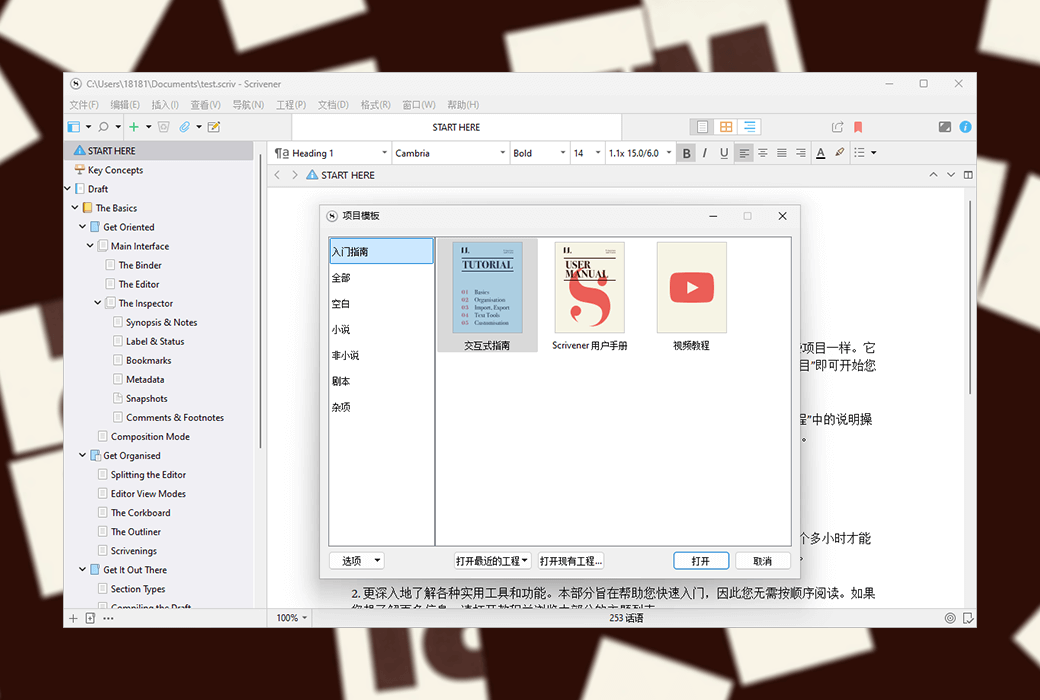
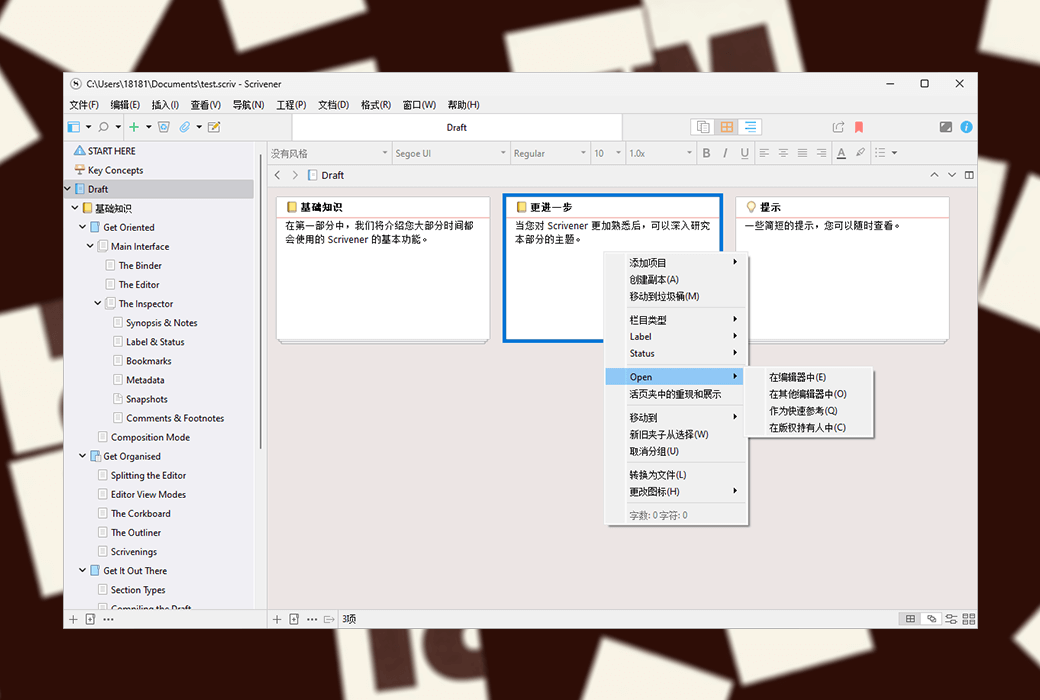
As a professional writing software, Scrivener's directory function is very powerful and flexible. After opening a new project, you will see the binder bar or directory tree on the left side of the interface. The root directory of the binder defaults to three folders, namely "Drafts", "Investigations", and "Garbage Bin". Draft "and" research "are easy to understand, with the former used to place the content of writing and the latter to place the collected information.
Full screen writing
Full screen writing is a common feature in various writing software. In full screen mode, you can set text zoom, paper position (center, left, right), paper width, and light background by yourself.
In full screen mode, the software defaults to typewriter mode, which means that the line being inputted will automatically be placed in the middle of the screen, and there is no need to wait until it reaches the bottom of the screen. The content will jump up line by line, which is quite user-friendly.
Of course, in non full screen mode, you can also set the typewriter scrolling mode by yourself. In addition, it is very convenient to directly use keyword search, viewer, and document jump functions in full screen mode.
Note taking function
Generally speaking, Scrivener has three types of notes: document notes, engineering notes, and memo pads.
Document notes belong to a single document and can only be seen within the corresponding document.
Engineering notes are the notes of the entire project. Suitable for placing commonly used materials in current projects.
A notepad is equivalent to a loose leaf notebook, shared by all Scrvener projects. Its content can be sent to any designated location in any project at any time.
Official Website:https://www.literatureandlatte.com
Download Center:https://scrivener.apsgo.cn
Alternate Download: N/A
Delivery Time: Automatic delivery within 24 hours
Operating Platform: Windows, macOS
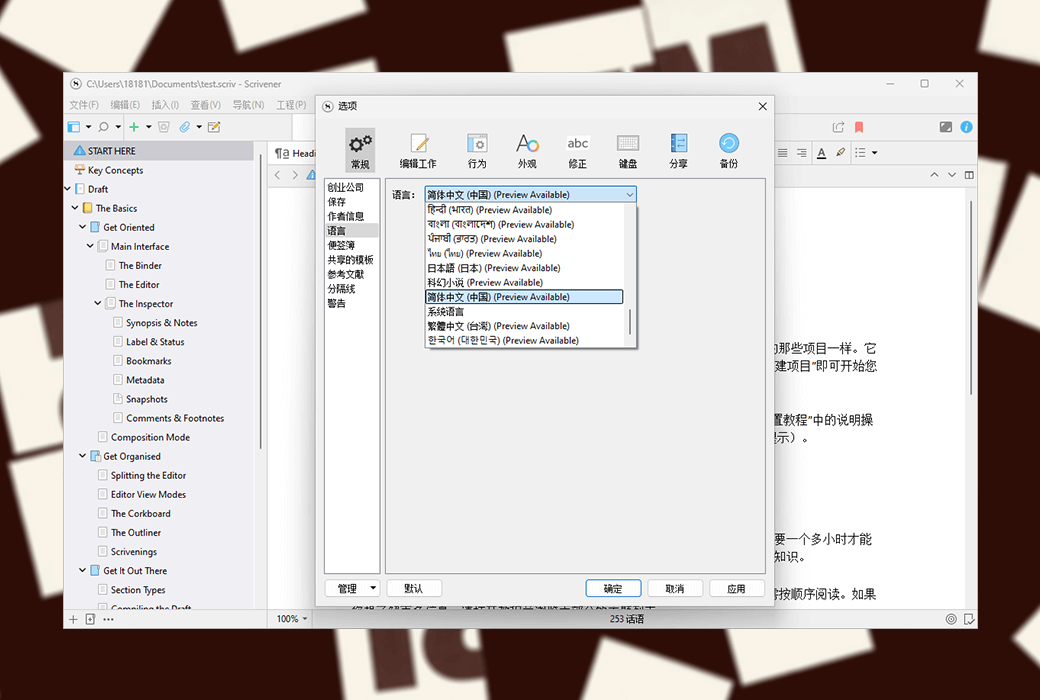
Interface Language: Supports Chinese interface display, with multiple languages available.
Update Instructions: The current version is valid for life and supports minor version updates and upgrades
Trial Before Purchase: A limited free version is available for use before purchase.
How to Receive Your Product: After purchase, the activation information will be sent to the email address used for the order. You can also view the corresponding product activation code in your personal center, under "My Orders".
Number of Devices: You can install on all your devices (Windows/macOS).
Changing Computers: Uninstall on the old computer and activate on the new one.
Activation Guide:https://scrivener.apsgo.com/forum/2978
Reference Materials:https://scrivener.tenderapp.com/help/kb/purchasing-and-installation

Any question

During the progress of your project, you may need to search for specific words or phrases. For example, you may want to find a specific part of a work, recall what a character did or said, and you may remember some specific vocabulary that can be searched. Alternatively, in non fiction books, you may want to search for a specific date to verify certain content. Moreover, if you decide to change the name of a character, completing this task in one operation is the easiest, which is to find the original name and replace it with the new name.
Scrivener provides multiple ways to find and replace text. Scrivener's search options are powerful, allowing you to find and replace more than just individual words and phrases.
In this article, we will explain how to use Scrivener's various search tools.
Quick Search
To quickly search for content in a project, click on the section in the toolbar that displays the name of the project you are currently viewing. Enter a word or phrase, and Scrivener will display a list of items containing the search term. These projects may include document titles, summaries, and body text.
You can also access the search bar by pressing Control-Option-G on Mac or Win+Ctrl+G on Windows.
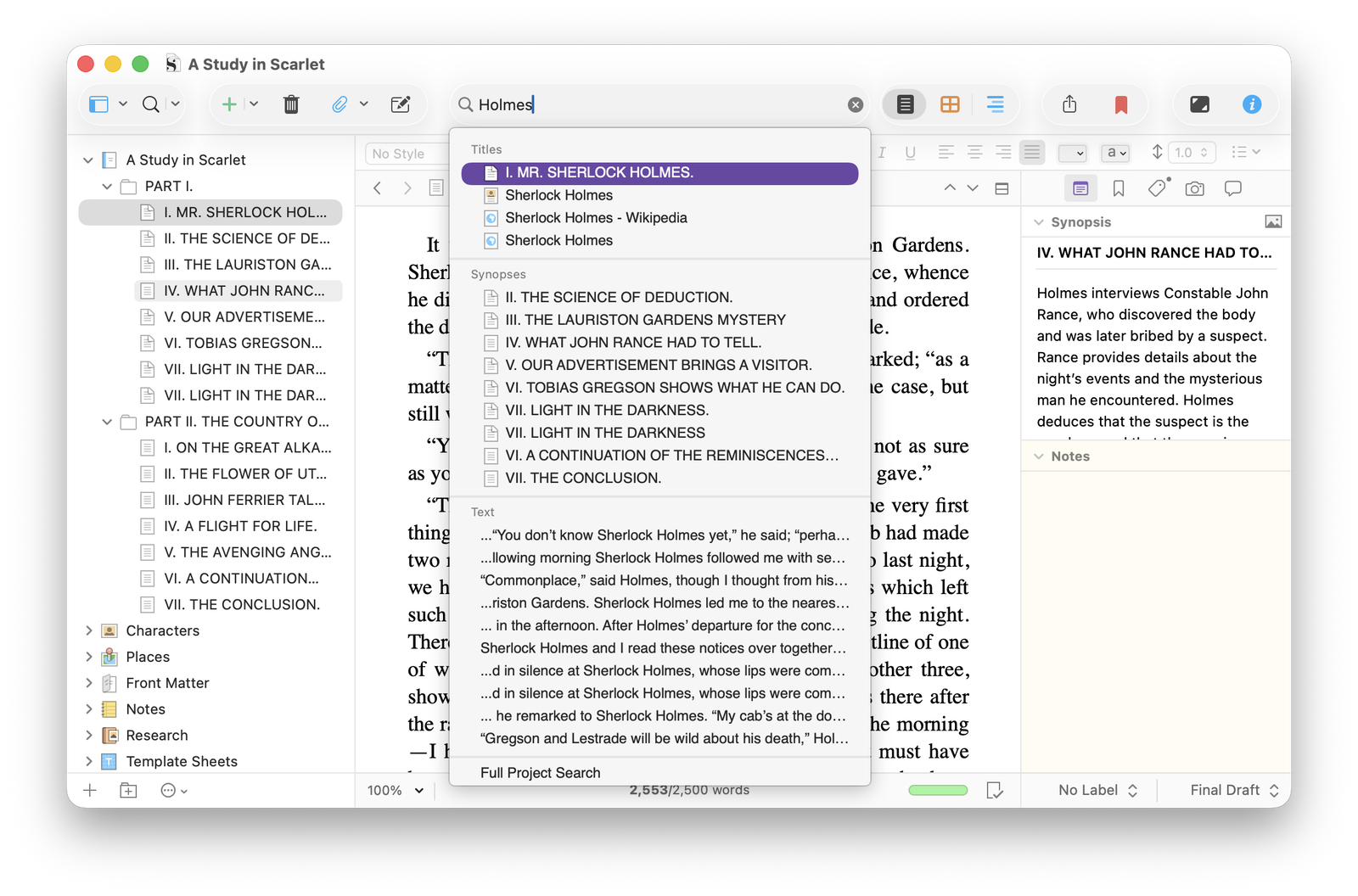
If you click on an item in the list, Scrivener will jump to that item. If the search term is located within a document in your draft or manuscript folder, Scrivener will briefly highlight the word and then select it.
You can see a 'Full Project Search' option at the bottom of the list. Select this option to enter project search mode, which will be introduced in the following text.
Find and replace text
To find text using the "Find and Replace" dialog box similar to most word processing software, first select a document in Document Manager and then choose "Edit>Find>Find", or press Command-F on Mac or Ctrl+F on Windows. Enter a word or phrase, click 'Next', and Scrivener will highlight the next occurrence of the search text.
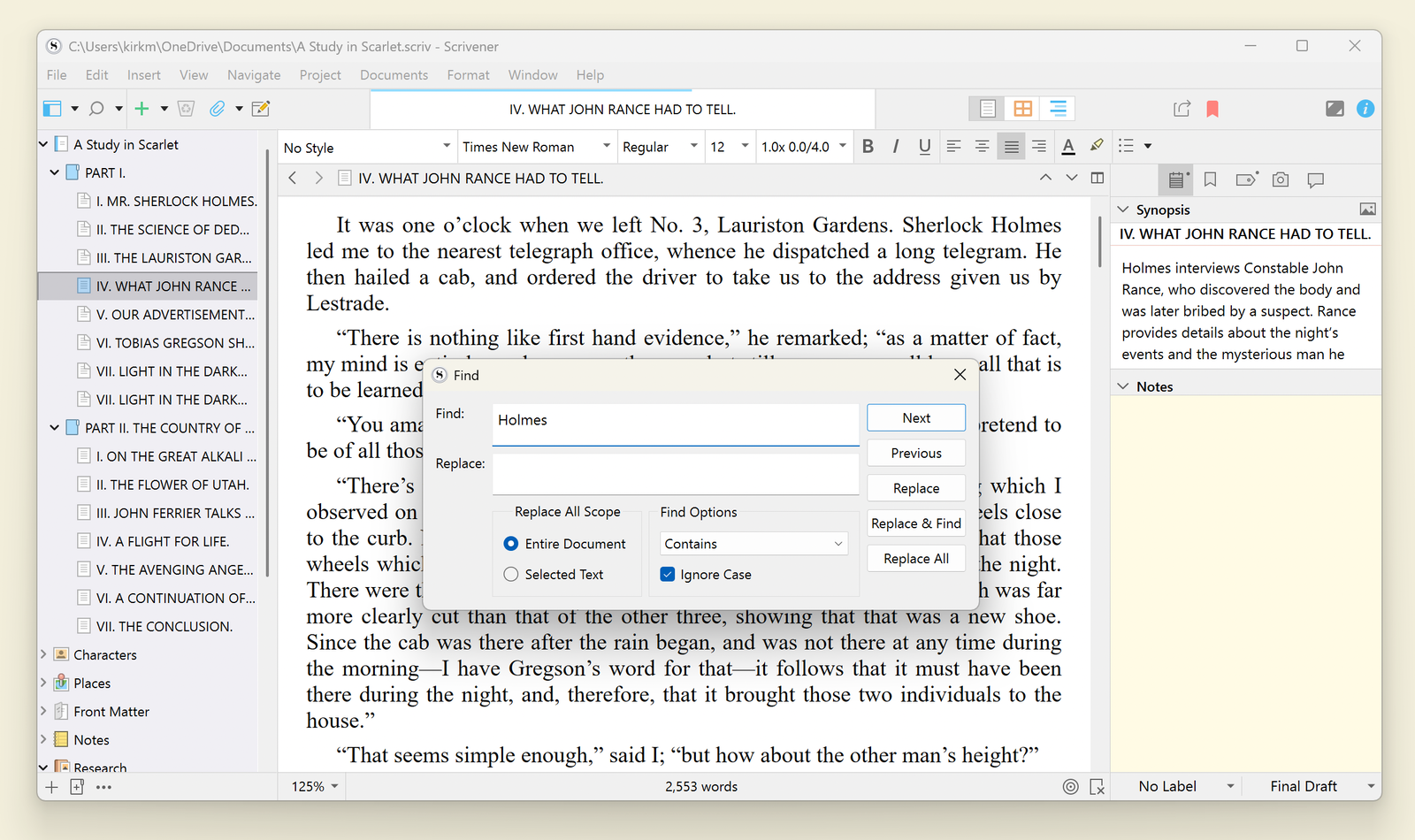
If your cursor is at the beginning of the document, Scrivener will find the first occurrence of the word in the document; If not, start searching for the first appearance position from the cursor position. Click 'Next' again to find the next appearance, or click 'Previous' to search in reverse.
You can also use keyboard shortcuts to find the next and previous occurrence positions: press Command-G on Mac or F3 on Windows to find "next", press Command-Shift-G on Mac or Shift+F3 on Windows to find "previous".
If you see the text you want to search for in the document, you can select it and then press Command-E on Mac or Ctrl-E on Windows. Scrivener will fill the "Find" field in the search box with that text. This means you don't need to use the 'Find/Replace' dialog box to search for text. Select some text, press Command-E or Ctrl+E, and then use the "Next" and "Previous" keyboard shortcuts mentioned above to browse the document.
Please note that you can also search for and replace text in multiple documents by selecting multiple documents in the Document Manager, or using Draft Mode to search for all documents in a folder, or your entire draft. For more information on using this mode, please refer to "Viewing and Editing Multiple Documents in Draft Mode".
precise search
Scrivener's search and replace function allows you to conduct precise searches.
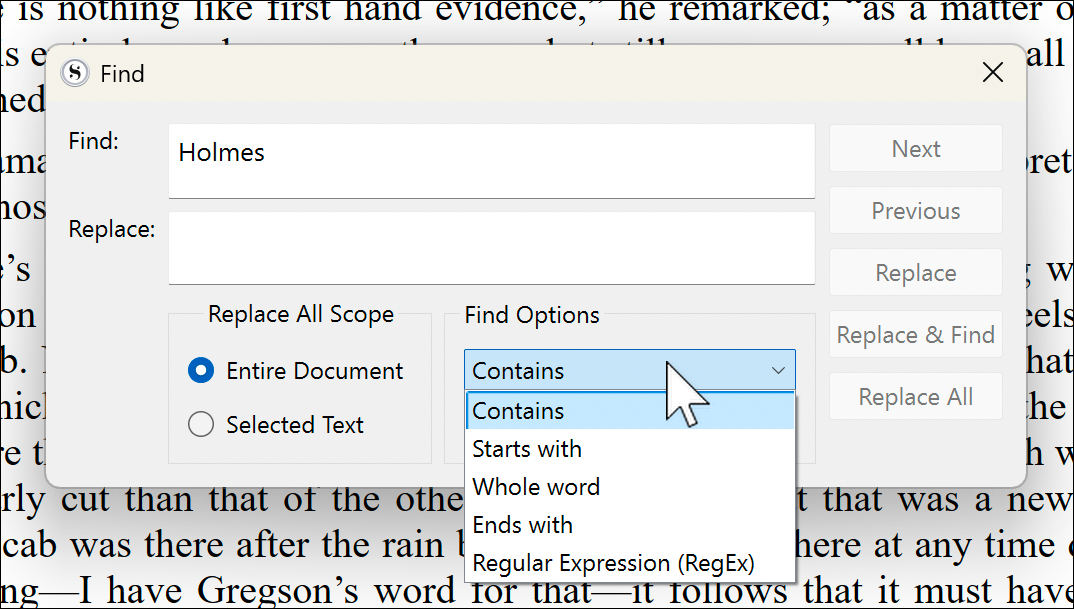
The search options allow you to ignore capitalization (Scrivener searches for text with uppercase and lowercase characters) and ignore diacritical marks (Scrivener ignores character accents when searching, so if you search for words containing the letter "e", words with e, é, è, and ë will be found).
The 'Find Options' pop-up menu provides more options. By default, this option is set to 'include', so if you search for 'the', Scrivener will find words such as' the ',' these ',' father ', and' together '. You can choose "start with..." (the search string must be at the beginning of a word), "match all words" (Scrivener searches for the exact text string), or "end with..." (Scrivener searches for words in the text string that end with a word).
Another option is to use regular expressions or RegEx. If you know what this is, then you will understand how powerful this form of search is. Regular expressions are a search method where you use variables to search for text, typically used for complex searches on code or databases.
A simple example is this search: say | say | said, which will find any string separated by the vertical line character "|"; In this example, there are three variants of the word 'say'. Alternatively, this search will find the complete words' go 'or' went ': \ bgo \ b | \ bwent \ b.
This article explains how to use regular expressions in Scrivener.
replace text
If you want to find a word or phrase and replace it with another, you can enter text in both the "Find" and "Replace" fields of the search box. When you click 'Find', you can click 'Replace' to replace the search text in that instance; Click on 'Replace and Find' to replace the text and move to the next appearing position; Alternatively, click 'Replace All' to replace all occurrences of the search text.
You can adjust the scope of 'replace all'; You can choose 'entire document' or just 'selected text'. In the latter case, first select some text and then search, Scrivener will only replace it in that selection.
Project Search
Scrivener's project search feature allows you to search for every element in the project: your text files, notes, summaries, keywords, and the contents of the research folder. If your research folder contains a large number of documents, this is a powerful tool for searching for content such as names, dates, or locations.
Click on the magnifying glass icon above the Document Manager, enter a search term, and then press Enter. The document manager will change its display mode to show project search results. You can also view these results by selecting 'Full Project Search' from the list displayed during the quick search, as described earlier.
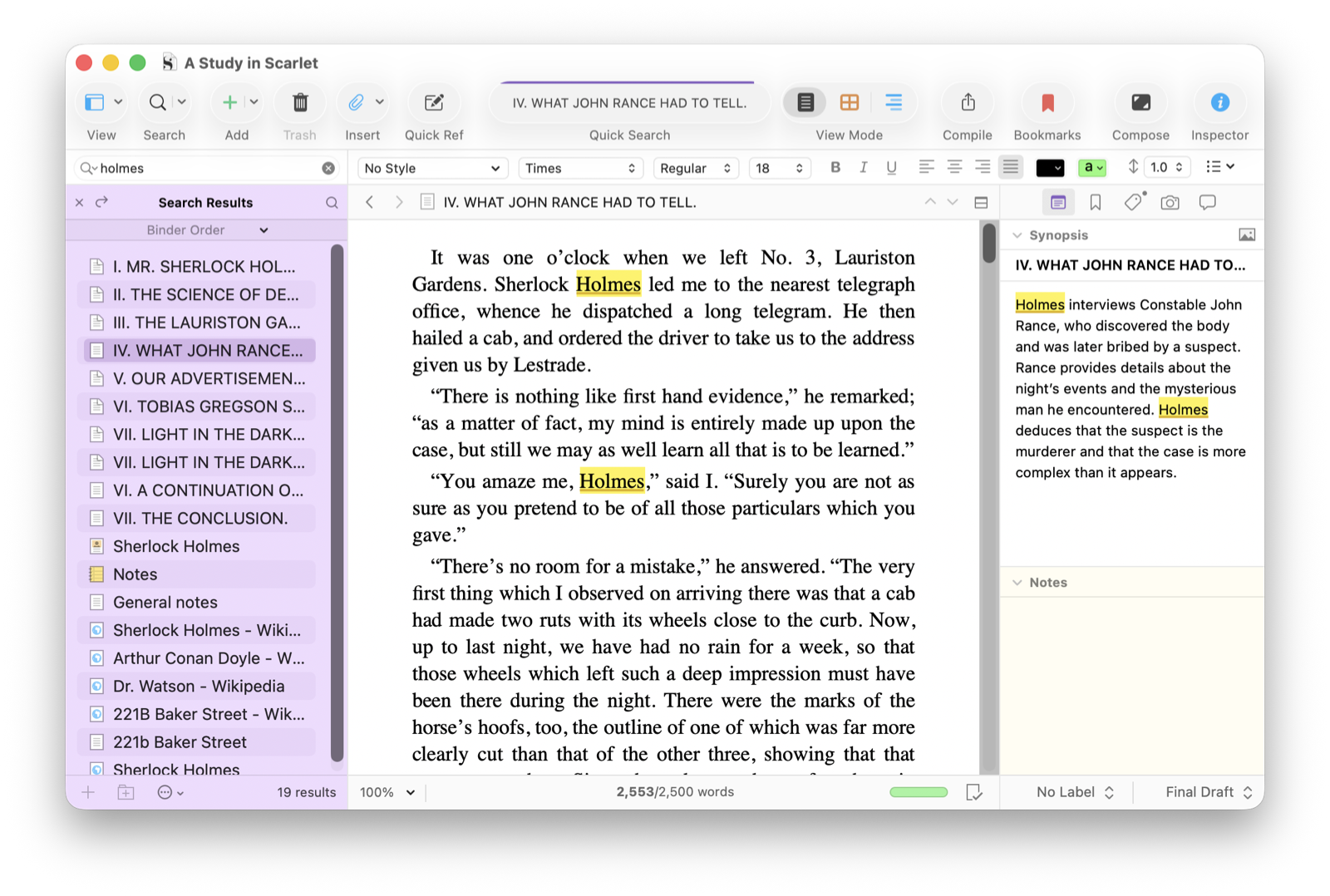
Click on an item in the "Search Results" list in the "Document Manager" to view your search terms in the selected item. Scrivener will highlight the search term, and you can view its other occurrences by pressing Command-G on Mac or F3 on Windows.
Scrivener provides many options to limit your search scope within the project, including different elements, precise phrases, and more. If you click on the disclosure triangle next to the magnifying glass icon, you can select these restrictions before or after entering the search term.
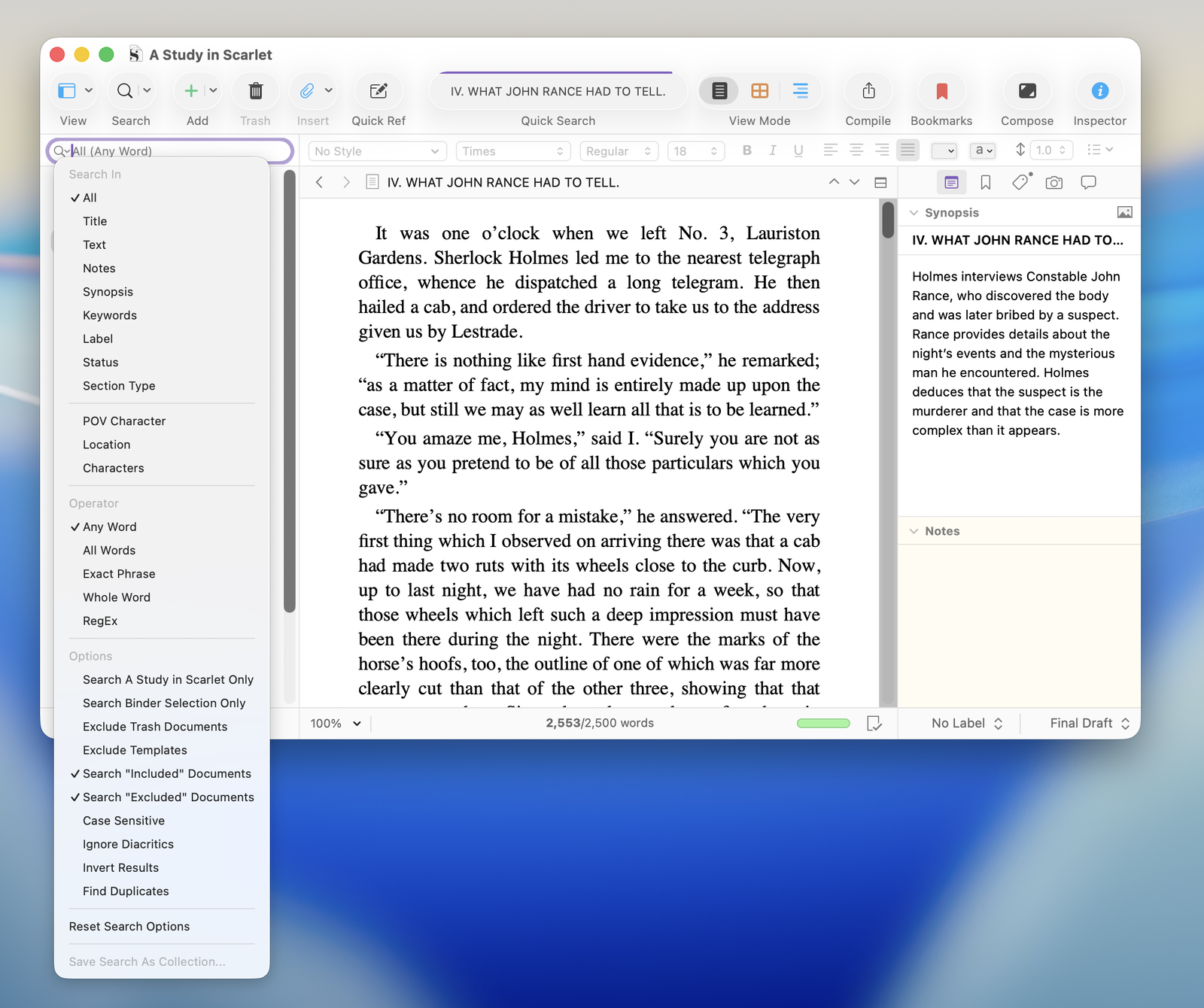
You can save the search as a collection for later viewing. At the bottom of the "Search Options" menu, select "Save Search as Collection". For more information on how to use search sets and other sets, please refer to "How to Use Scrivener's Sets to Quickly Access Filegroups or Search Results".
Search and replace text throughout the entire project
You can search and replace text throughout the entire project; Not only in all text files, but also in other elements. If you decide to change the name of a character or location in a novel, or change other specific terms that frequently appear in the work, this will be very useful. Select 'Edit>Find>Item Replacement' This dialog box will be displayed.
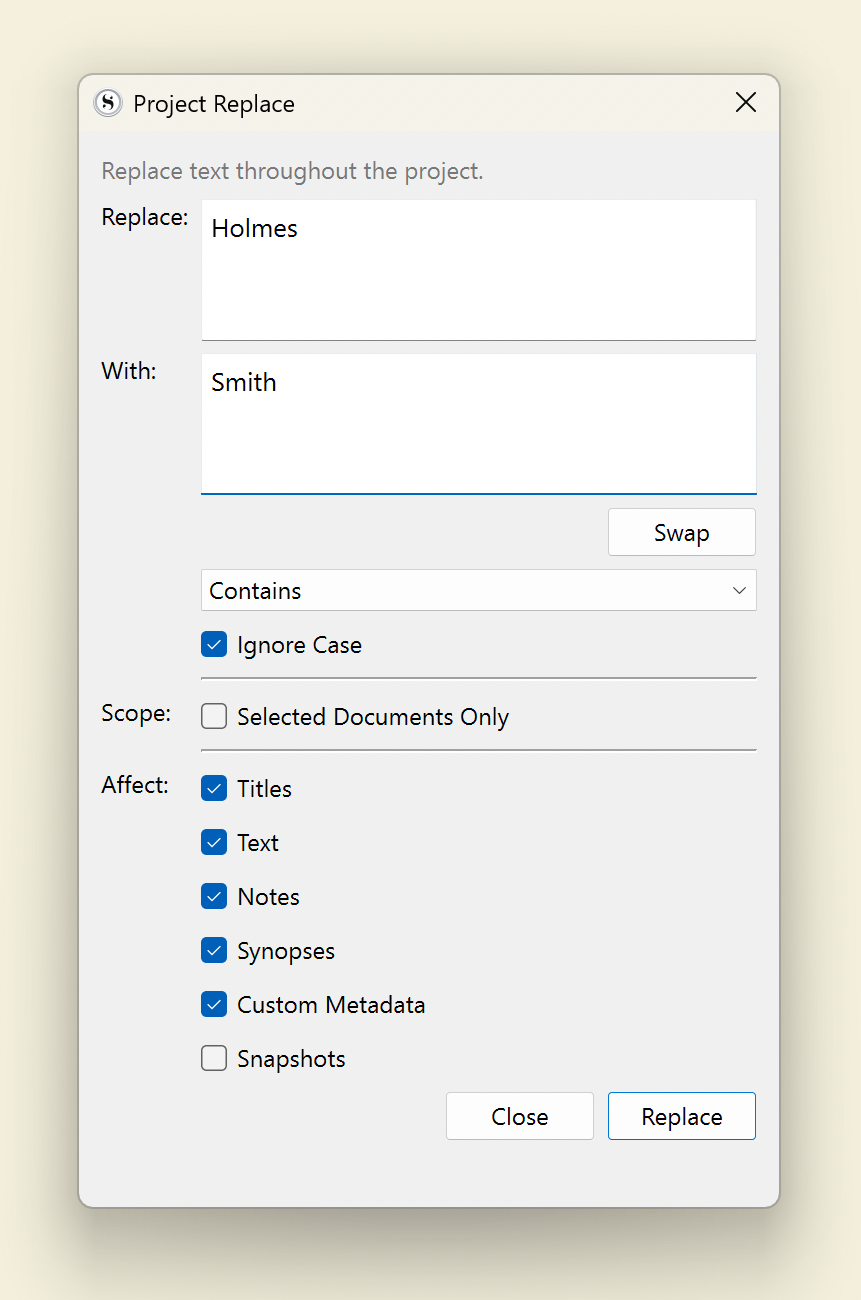
As you can see, this provides many search refinement options in the standard "Find" dialog box, but also allows you to select more than just "Document Manager" documents. You can use it to find and replace text in titles, text, notes, summaries, custom metadata, and snapshots (although snapshots are not selected by default because they are a previous version and you may not want to make changes in them).
Please note that when you use the standard 'Find' dialog box, you can undo the changes you have made, but when you use 'Project Replace', you cannot do so. It is best to back up your Scrivener project before initiating such replacements. For more information about backing up projects, please refer to "How to Backup Your Scrivener Project".
Scrivener's search function is extremely powerful, and this article only covers a part of the many options available. Chapter 11 of the Scrivener Handbook provides detailed information on other search options.
Original text from:https://www.literatureandlatte.com/blog/find-and-replace-text-in-your-scrivener-projects